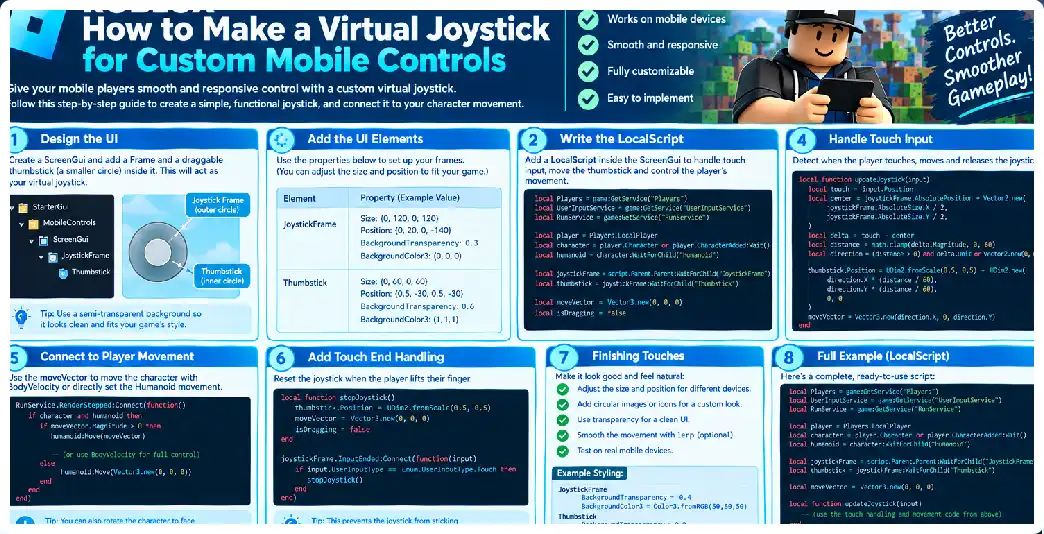
A production-ready virtual joystick requires more than detecting a player’s finger and moving a circle around the screen. In a serious Roblox experience, the joystick must coexist with camera controls, jump buttons, attack buttons, menus, prompts, notifications, and other touch interactions. It must behave consistently across phones and tablets, correctly handle multiple simultaneous touches, avoid accidental input conflicts, provide predictable movement, and remain lightweight enough to operate continuously during gameplay. Roblox provides the client-side input and GUI systems necessary to construct such an architecture.
The best production architecture treats the virtual joystick as an input device abstraction. Its job is not to directly contain all character movement logic. Instead, it produces a clean movement value such as a Vector2 or normalized directional vector. Another system can consume that value and translate it into character, vehicle, camera, or other gameplay behavior. This separation allows the same movement system to support touch, keyboard, gamepad, and potentially other input sources without duplicating gameplay logic. Roblox’s input services and Humanoid movement APIs support this type of separation.
Start With an Input Contract
Before creating the GUI, define what the joystick should output.
A useful contract is:
X = -1 to +1
Y = -1 to +1
Magnitude = 0 to 1
For example:
Vector2.new(0, -1)
means full forward input, while:
Vector2.new(1, 0)
means full right input.
A diagonal input might be:
Vector2.new(0.7, -0.7)
The important part is that the joystick should produce a predictable mathematical representation instead of directly modifying dozens of character properties.
Recommended Architecture
A scalable project can use:
MobileInputController
        │
        ├── VirtualJoystick
        │
        ├── ActionButtons
        │
        └── TouchManager
                │
                ▼
          Input State
                │
                ▼
        Character Controller
The joystick handles analog touch input. Action buttons handle discrete actions. The touch manager coordinates ownership of touches and UI conflicts.
This separation becomes extremely useful when your game grows.
The Virtual Joystick Data Model
Internally, maintain:
local joystickState = {
    Active = false,
    Touch = nil,
    Vector = Vector2.zero,
    Magnitude = 0,
}
This gives other systems a simple state representation.
For example:
if joystickState.Active then
    local direction = joystickState.Vector
end
The UI does not need to know whether the character is walking, driving, flying, or swimming.
Why Vector2 Is Useful
Touch positions are screen coordinates, so Vector2 is a natural representation for the joystick.
The joystick calculation is:
Current Touch
      -
Joystick Center
      =
Offset Vector
Then:
Offset / Radius
      =
Normalized Input
This produces an intuitive mapping between finger displacement and control input.
Calculate the Absolute Center
GUI objects expose AbsolutePosition and AbsoluteSize, which are useful because the joystick needs actual screen-space coordinates rather than only scale-based UI coordinates.
A center calculation can be:
local center =
    base.AbsolutePosition +
    base.AbsoluteSize / 2
This continues to work when the GUI changes size.
Use AnchorPoint Correctly
Set the thumb’s anchor point to:
thumb.AnchorPoint = Vector2.new(0.5, 0.5)
This makes the thumb’s position represent its center.
Without a centered anchor point, developers frequently end up adding half the thumb size manually to every calculation.
The anchor point is specifically designed to determine the origin from which a GUI object’s position is interpreted.
Touch Ownership
One of the most important production features is touch ownership.
Suppose the player has:
Finger 1 → joystick
Finger 2 → camera
Finger 3 → attack
The joystick should only respond to Finger 1.
Therefore:
activeTouch = input
should happen once.
Subsequent movement events should be accepted only if:
input == activeTouch
When that touch ends:
activeTouch = nil
This prevents other fingers from hijacking the joystick.
Why Touch Ownership Matters
Without touch ownership, consider this sequence:
Player presses joystick
Player presses attack
Attack touch becomes movement
Player moves attack finger
Character unexpectedly moves
This produces unreliable controls.
A production controller should treat every active touch as an independent input source and assign it to a specific control.
Use GUI Touch Events or UserInputService
There are two main approaches.
GUI-based
Attach input handlers to the joystick GUI.
This is convenient because the joystick itself defines the interaction area. GUI objects expose InputBegan, InputChanged, and InputEnded, as well as touch-specific events such as TouchPan.
Global input
Use UserInputService to monitor touch input globally.
This is useful when the joystick is dynamic or when you need to coordinate multiple touch zones. UserInputService exposes touch events and touch-enabled state.
For a production controller, either approach can work. The choice depends on whether the touch region belongs naturally to the GUI object or to a larger input-management layer.
TouchPan as an Alternative
A joystick can also use the GUI’s TouchPan event. This event reports touch positions, total translation, velocity, and state, making it useful for controls that respond to finger movement.
For a joystick, however, directly tracking the active touch can sometimes provide more explicit control over ownership and cancellation.
The important thing is to avoid mixing multiple input models unnecessarily.
Fixed Joystick
A fixed joystick has:
Permanent Base
Permanent Center
Moving Thumb
It is easy for players to learn.
It also makes it easier to build predictable layouts because other UI elements know where the joystick will be.
Floating Joystick
A floating joystick uses:
Touch begins
      ↓
Create center
      ↓
Touch moves
      ↓
Calculate offset
This can make the interface more flexible.
However, the developer needs to decide where the valid movement zone begins and how the joystick interacts with other controls.
Joystick Activation Zone
Instead of requiring the player to touch the visible base exactly, create a larger invisible interaction zone.
For example:
Visible joystick:
120 px

Touch zone:
180 px
This improves usability without making the visual joystick enormous.
The GUI input region can be larger than the visible artwork.
Dead Zone Design
A dead zone is especially important for mobile input.
For example:
local DEAD_ZONE = 0.10
Then:
if magnitude < DEAD_ZONE then
    direction = Vector2.zero
end
This prevents tiny accidental finger movement from causing the character to drift.
However, dead zones should be tested carefully. A dead zone that is too large can make the control feel sluggish.
Radial Clamping
A joystick should normally use radial rather than rectangular clamping.
Incorrect:
X = clamp(X, -radius, radius)
Y = clamp(Y, -radius, radius)
This creates a square control region.
Correct:
if offset.Magnitude > radius then
    offset = offset.Unit * radius
end
This preserves the circular shape of the joystick.
Normalizing the Input
After clamping:
local inputVector = offset / radius
The result is approximately:
X: -1 to +1
Y: -1 to +1
The magnitude will not exceed one.
This is the ideal form for passing movement into another controller.
Applying a Response Curve
You can separate direction from magnitude.
local magnitude = inputVector.Magnitude
local direction = magnitude > 0
    and inputVector.Unit
    or Vector2.zero
Then modify the magnitude:
local curvedMagnitude = magnitude ^ 1.35
and:
inputVector = direction * curvedMagnitude
This allows the control to have a nonlinear response without changing its direction.
Converting to Humanoid Movement
Convert the joystick vector:
local moveDirection = Vector3.new(
    inputVector.X,
    0,
    inputVector.Y
)
Then:
humanoid:Move(moveDirection, true)
The movement API accepts a direction vector and can interpret that direction relative to the camera.
This is an important distinction: the joystick produces an input vector, while the Humanoid interprets that vector as movement.
Camera-Relative Movement
For a typical third-person game, camera-relative movement is often intuitive.
If the camera rotates:
Joystick Up
      ↓
Character moves toward camera-relative forward
This means the player does not have to mentally translate screen directions into world axes.
The relativeToCamera parameter of Humanoid:Move() provides this behavior directly.
Custom Movement Controller
If your game has its own movement system, you may not want to call Humanoid:Move() directly.
Instead:
MovementController:SetInput(inputVector)
Then the movement system decides how to interpret it.
This allows:
Joystick
Keyboard
Gamepad
AI
Vehicle controls
to all feed the same movement controller.
Synchronization With the Frame Loop
If your movement system requires continuous application, use an appropriate frame event.
RunService provides PreRender, PreSimulation, PostSimulation, Heartbeat, and BindToRenderStep(). The correct choice depends on whether the code is updating visuals, input state, or physics-related behavior.
For a simple custom character input implementation, a lightweight render-step or simulation-related update can be appropriate depending on how your controller is structured.
Do not automatically put every operation into BindToRenderStep().
Roblox specifically advises against unnecessary render-step connections and recommends keeping render callbacks lightweight.
Input Priority
If multiple systems consume input, ordering can matter.
ContextActionService supports action priorities and allows higher-priority bindings to be processed before lower-priority bindings.
This can be useful for actions such as:
Normal gameplay
      ↓
Vehicle controls
      ↓
Inventory opened
      ↓
Dialogue opened
When a menu is open, gameplay input may need to be disabled or redirected.
Disabling Gameplay Controls
Suppose the player opens an inventory.
The joystick should normally stop controlling the character.
Your controller could maintain:
controller.Enabled = false
When disabled:
Touch input
   ↓
UI only
When enabled:
Touch input
   ↓
Gameplay
Context-sensitive action binding is one reason input systems benefit from explicit states.
Integrating Jump
Jump is not an analog control.
Therefore, keep it separate:
Movement joystick
→ Vector2

Jump button
→ Boolean / action
The joystick should not be responsible for both.
Integrating Sprint
Sprint can be another action:
Joystick magnitude > threshold
+
Sprint pressed
=
Running
For example:
local isSprinting = sprintHeld
local movement = joystickVector
The movement system can then decide the actual speed.
This is much cleaner than making the joystick itself manipulate humanoid walk speed.
Integrating Attack
Attack should similarly be a discrete action.
A touch button can call an action handler while the joystick continues producing analog movement.
The important part is that both controls must coexist without stealing each other’s touches.
Mobile Layout
Mobile UI should be designed around thumb reach. Official UI guidance recommends considering reserved zones and comfortable thumb areas rather than simply positioning controls wherever there is empty screen space.
A typical arrangement might be:
                 Health
       ┌─────────────────────────┐
       │                         │
       │                         │
       │                         │
       │                         │
       │                         │
       │                         │
       │                         │
       │                         │
       │ JOYSTICK       ACTIONS  │
       └─────────────────────────┘
The exact layout should depend on the game’s control requirements.
Responsive Sizing
Do not use one absolute pixel size everywhere.
You can use:
UDim2.fromScale(...)
for responsive positioning, or combine scale with offsets.
Roblox also exposes viewport display-size information that can be used to adapt interface layouts to broad device classes.
A responsive controller can adjust:
Joystick diameter
Touch zone
Action button size
Spacing
Margins
based on screen characteristics.
Safe Areas and Reserved Zones
Do not assume every corner of the screen is equally available for custom UI. Mobile devices and Roblox’s own controls can occupy areas of the display, and the official UI guidance specifically recommends avoiding important controls in reserved zones.
If your experience uses custom controls that replace or coexist with built-in controls, test the final composition rather than designing each element independently.
Visual States
A polished joystick should have states:
Idle
Pressed
Dragging
Disabled
For example:
Idle
→ transparency 0.4

Pressed
→ transparency 0.2

Disabled
→ transparency 0.8
The thumb could also change scale or brightness while active.
Accessibility
A production mobile control should consider:
- Touch target size
- Contrast
- Visual feedback
- Clear movement direction
- Consistent placement
- Reduced visual clutter
- Avoiding overly small buttons
The controls should remain usable without requiring pixel-perfect finger placement.
Touch Cancellation
A robust system should also consider situations where the input is interrupted.
For example:
Joystick active
      ↓
System UI / menu interaction
      ↓
Touch sequence interrupted
The controller should have a cleanup path that clears:
activeTouch = nil
joystickVector = Vector2.zero
This prevents stuck movement.
Character Respawning
When the character dies and respawns, your joystick should not retain references to the old Humanoid.
Instead, retrieve the current character and Humanoid when needed.
For example:
local function getHumanoid()
    local character = player.Character
    if not character then
        return nil
    end

    return character:FindFirstChildOfClass("Humanoid")
end
This avoids stale character references.
Separating Input From Character Lifetime
The joystick exists because the player exists.
The Humanoid can disappear and be replaced.
Therefore:
Player
 ├── Mobile controller
 │
 └── Current character
       └── Current humanoid
The controller should survive character respawns while dynamically finding the current movement target.
Performance
A virtual joystick should not create large amounts of garbage every frame.
Avoid constructing unnecessary tables or objects in render callbacks.
Roblox’s performance documentation specifically warns that render-step callbacks should perform minimal work and highlights unnecessary frame-by-frame processing as a source of performance problems.
Keep:
Input state
Current vector
Active touch
as persistent variables rather than creating new structures unnecessarily.
Debugging
During development, temporarily display:
Touch ID
Joystick Vector
Magnitude
Active State
For example:
Touch: Active
X: 0.72
Y: -0.31
Magnitude: 0.78
This makes it much easier to diagnose issues with direction and clamping.
Testing Matrix
Test:
| Scenario | Expected Result |
|---|---|
| Center touch | No movement |
| Up | Forward movement |
| Down | Backward movement |
| Left | Left movement |
| Right | Right movement |
| Diagonal | Diagonal movement |
| Beyond radius | Maximum movement |
| Release | Immediate stop |
| Second finger | Does not steal joystick |
| Menu open | Gameplay input disabled |
| Respawn | Movement continues with new Humanoid |
| Tablet | Comfortable control |
| Phone | Comfortable control |
The same control should behave consistently across the supported device classes.
Using ContextActionService Alongside the Joystick
ContextActionService is particularly useful for discrete actions because it can bind actions to different input types and optionally create touch buttons. Its generated buttons can also be repositioned and customized to some degree.
For example:
Joystick
→ custom GUI

Jump
→ action binding

Attack
→ action binding

Reload
→ action binding
This hybrid approach can be very effective.
When a Fully Custom Control System Is Better
If your game needs:
Custom joystick
Custom camera
Custom buttons
Custom gestures
Custom input priority
Custom controller support
then a centralized input controller may be easier to maintain than mixing many unrelated systems.
The important point is to create a stable internal input representation.
Recommended Internal API
For example:
MobileController:GetMoveVector()

MobileController:IsJumpHeld()

MobileController:IsSprintHeld()

MobileController:GetAimVector()
The character controller can then consume these values without caring whether they came from touch, keyboard, or gamepad.
Complete Production Architecture
                 INPUT SYSTEM
                      │
        ┌─────────────┼─────────────┐
        │             │             │
     Touch         Gamepad       Keyboard
        │
   Mobile GUI
        │
 ┌──────┴───────┐
 │              │
Joystick      Buttons
 │              │
 └──────┬───────┘
        │
   Input State
        │
        ▼
Character Controller
        │
        ▼
Humanoid / Custom Movement
This architecture makes the joystick a component rather than the entire movement system.
Frequently Asked Questions
Is a custom joystick better than the default joystick?
There is no universal answer. A custom joystick gives you control over appearance, placement, behavior, and integration with your game’s interface. It also creates additional implementation and testing responsibilities.
Should the joystick directly change WalkSpeed?
Usually, no. The joystick should represent directional input while the movement system determines speed.
Can I make the joystick camera-relative?
Yes. Humanoid:Move() accepts a relativeToCamera parameter, allowing the movement direction to be interpreted relative to the camera.
How do I make the joystick analog?
Use the distance between the finger and joystick center to produce a magnitude between zero and one.
How do I prevent a second finger from taking over?
Store the active InputObject and ignore other touch inputs until that touch ends.
Can the joystick support diagonal movement?
Yes. Use the X and Y components of the calculated Vector2.
Why should I use a dead zone?
It prevents tiny accidental finger movements from producing unwanted character movement.
Should I use TouchPan?
It is a valid option. GUI TouchPan provides translation and velocity information and can be useful for touch-driven UI controls.
Should I use UserInputService?
It is useful when you need global touch state or need to coordinate multiple input regions. It exposes touch-related events and touch capability information.
How do I make controls responsive?
Use responsive UI sizing and test on multiple phone and tablet dimensions. Consider thumb zones rather than only screen geometry.
Can I hide the default touch controls?
Roblox provides client-side mechanisms for enabling or disabling touch-control display UI.
Can I use the same system for vehicles?
Yes. Have the joystick produce a directional input and allow the vehicle controller to interpret that vector.
Should the server receive every joystick movement?
For ordinary local character controls, do not design the system around sending a remote event for every finger movement. Keep the input local and let Roblox’s character movement architecture handle normal movement. If your game has a custom server-authoritative movement system, design the network layer separately and deliberately.
Does the joystick need to be saved?
Usually no. Its current position is temporary interface state unless your game intentionally allows players to customize control placement.
Can players move the joystick position?
Yes. You can add a settings mode that allows players to reposition controls. Persist the chosen layout separately if you want the customization to survive sessions.
Is the same system valid for USA, UK, and Canada?
Yes. The technical implementation is not country-specific. The interface should be localized and tested for the devices and audiences you support.